How to add reverb, delay, fade in out, filter like effects to audio
Raw audio often sounds dry and lifeless. Adding studio effects like Reverb (echo), Delay, and EQ Filters can completely transform a recording, giving it space, warmth, and depth.
Using our Audio Effects Editor, you can apply high-quality studio effects directly in your browser.
Step 1: Open the Mixer Panel
After uploading your audio track to the editor, select the audio block you want to apply effects to, and click the Mixer button on the right side of the screen.
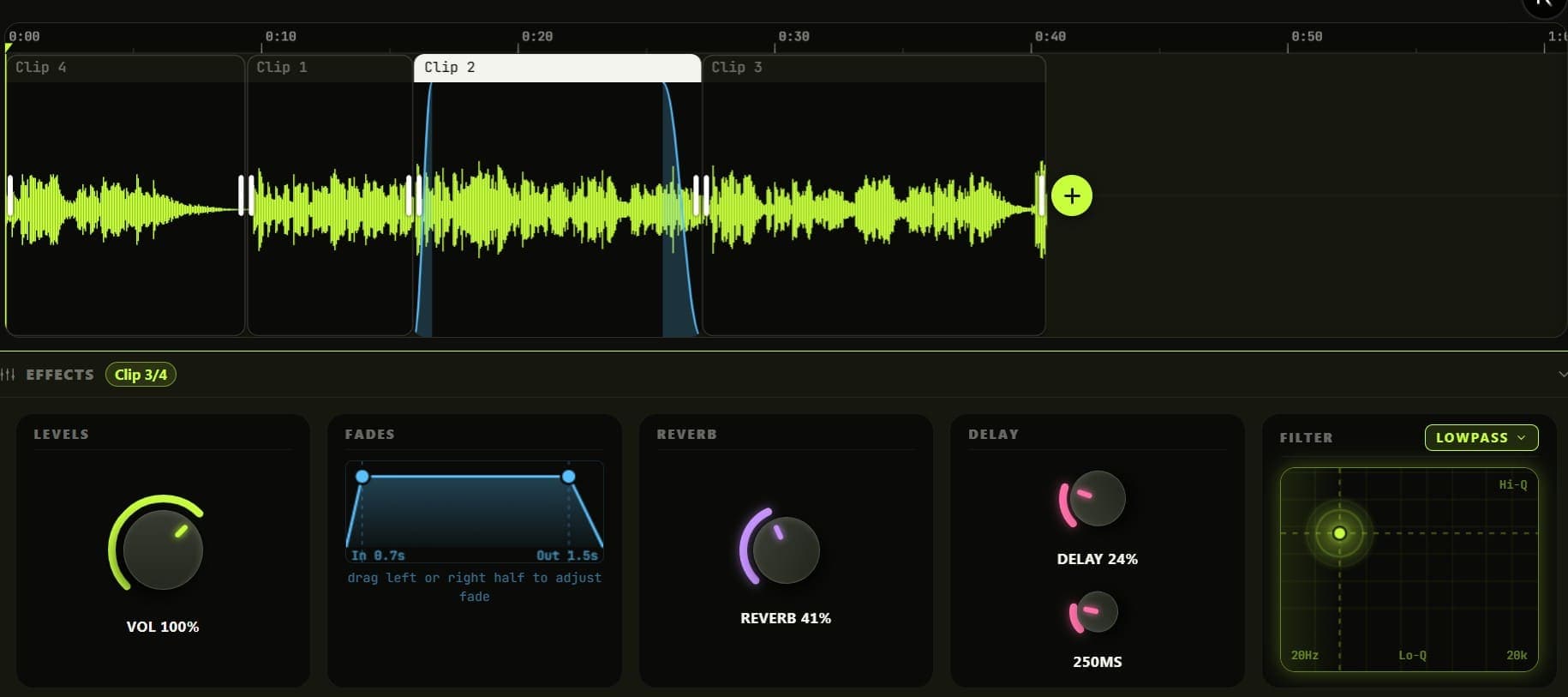 Audio Effects Mixer Panel
Step 2: Applying Fades
A sudden, harsh start or stop to an audio track can sound jarring.
- Fade In: Adjust the Fade In slider to smoothly bring the volume up from silence at the beginning of the track.
- Fade Out: Use the Fade Out slider to create a smooth transition to silence at the end of the track.
Step 3: Reverb and Delay
These two effects control the "space" of your audio:
- Reverb: Turning up the Reverb knob simulates the sound of your audio being played in a large hall or cave. It adds a lush, lingering tail to vocals and drums.
- Delay: The Delay knob adds a rhythmic echo to your audio. You can adjust the "Delay MS" (milliseconds) to make the echo faster or slower.
Step 4: EQ Filtering
Sometimes a track has too much rumble, or sounds muffled. You can use the Filter section to fix this:
- Low-pass Filter: Cuts out high frequencies (makes things sound muffled or "underwater").
- High-pass Filter: Cuts out low bass frequencies (great for removing wind noise or microphone rumble from voiceovers).
All of these effects are applied non-destructively. You can hit Play and turn the knobs in real-time to hear exactly how the effects are changing your sound before you hit Export!