How to Cut and Trim Audio Files in Your Browser
Whether you're removing dead air from the beginning of a podcast, extracting a 15-second hook from a song, or cutting out a mistake from a voiceover, trimming audio is a crucial skill.
With our Free Audio Trimmer, you can easily cut your audio files visually, directly in your web browser.
Step 1: Load Your Audio File
Drag and drop your MP3, WAV, or M4A file into the main editor window. The engine will instantly decode the file and draw a massive, highly-detailed waveform so you can actually see the sound.
Step 2: Use the Trimming Handles
Once your file is loaded, you will see a highlighted segment representing your audio track on the timeline.
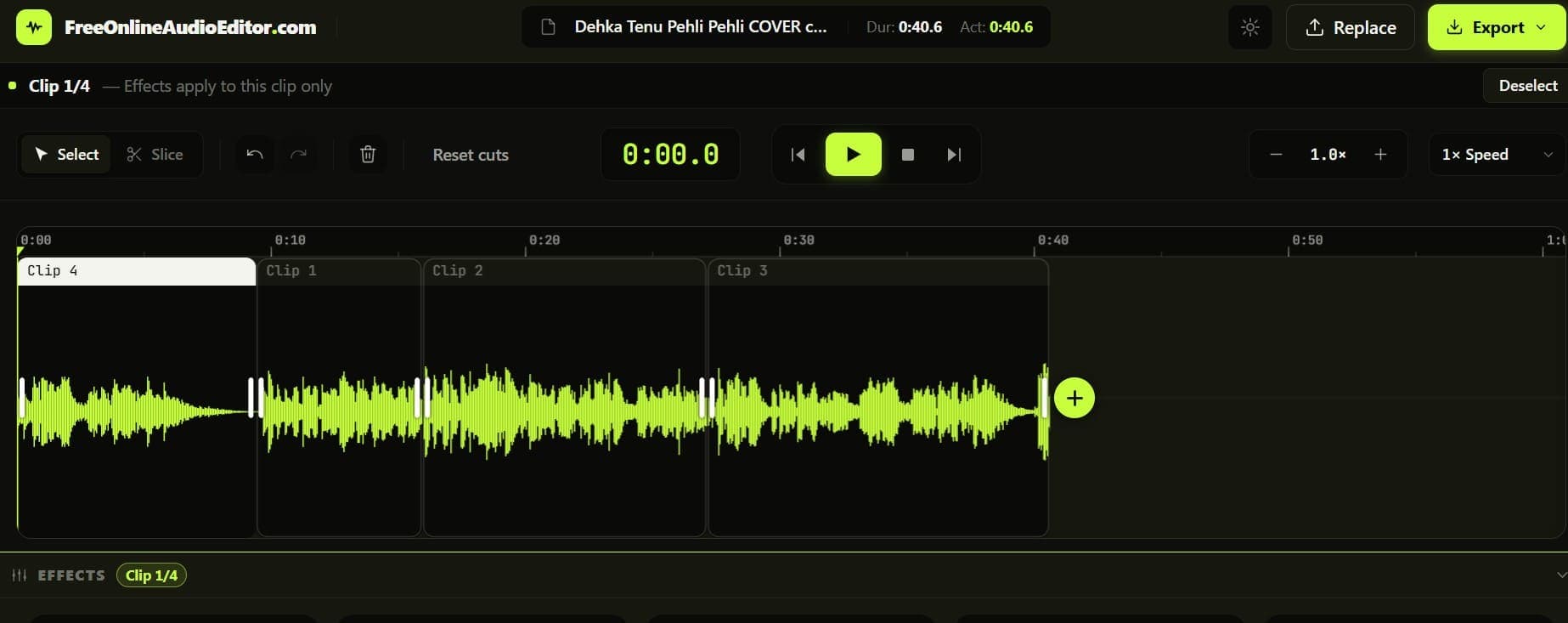 Trimming Audio Handles
To trim the beginning or end of the track:
- Hover your mouse over the left or right edge of the audio block.
- Your cursor will turn into a horizontal arrow.
- Click and drag the edge inward to trim away the silence.
Step 3: Splitting the Audio (The Scissors Tool)
If you need to remove a mistake in the middle of the track, you need to use the Split tool:
- Select the Scissors tool from the toolbar (or press 'C' on your keyboard).
- Click anywhere on the waveform to instantly slice the audio block into two separate pieces.
- You can now select the piece you don't want and press the Delete key (or the trashcan icon) to remove it entirely!
Step 4: Export Your Trimmed File
Once you have cut the audio down to size, click the Export button in the top right. You can download the result instantly as a high-quality WAV or a compressed MP3 file.