How to Edit Audio by Editing Text Transcripts
Editing podcasts or voiceovers traditionally requires you to listen to your audio closely, look at confusing waveforms, and manually slice out mistakes. It's tedious and time-consuming.
With our new Transcript Editor, you can edit your audio exactly like you edit a text document. Our local, in-browser AI transcribes your audio, and any word you delete from the text is automatically cut from the audio!
Step 1: Upload Your Voice Recording
Drag and drop your MP3, WAV, or M4A file into the Transcript Editor. For the best results, use a file with clear spoken voice (like a podcast, interview, or voiceover).
Because our AI models run 100% locally in your browser using WebGPU, your audio is never uploaded to any cloud server. This guarantees total privacy and incredibly fast transcription speeds.
Step 2: Let the AI Transcribe
Once your file is loaded, the AI will automatically begin transcribing your audio into text. You will see the words appear on the screen in real-time. The transcription engine supports both English and Spanish!
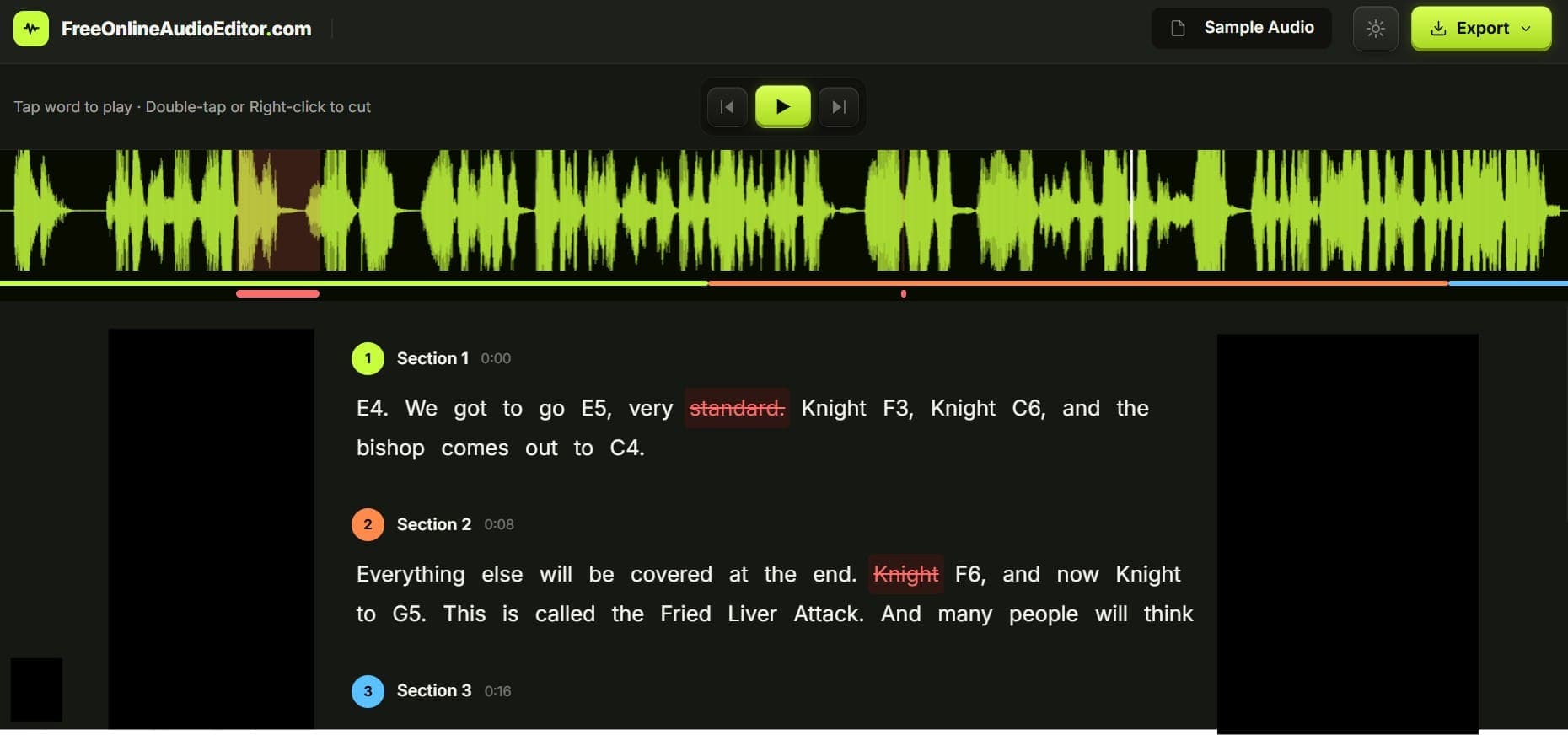 Transcript Editor Preview
Step 3: Delete Words to Cut Audio
This is where the magic happens. Read through your generated transcript. When you find a mistake, a stumble, or a tangent you want to remove:
- Tap or click a word to select it and jump the audio playback to that exact moment.
- Double-tap or right-click the word to cross it out.
That's it! By crossing out the word, you have instantly commanded the editor to slice that section of audio out of the timeline. You can delete entire sentences just by double-clicking the words.
If you make a mistake, simply double-click the crossed-out word again to restore it.
Step 4: Export Your Cleaned Audio
Once your transcript reads perfectly, hit the Play button to preview your cuts. The player will seamlessly skip over all the words you deleted.
Click Export to save your perfectly edited podcast as a high-quality WAV or MP3 file.