How to Merge Multiple Audio Tracks Together Online
If you're producing a podcast, a presentation, or a simple song mix, you'll often need to combine multiple audio files together. Rather than relying on clunky desktop software, you can use our Online Audio Merger to layer and mix tracks seamlessly.
Step 1: Add Your First Track
Drag and drop your primary audio file (e.g., your voiceover or main vocal) into the editor workspace.
Step 2: Add Additional Tracks
To merge another file (like background music or a sound effect), click the Add Track button in the toolbar (or simply drag and drop another file into the window).
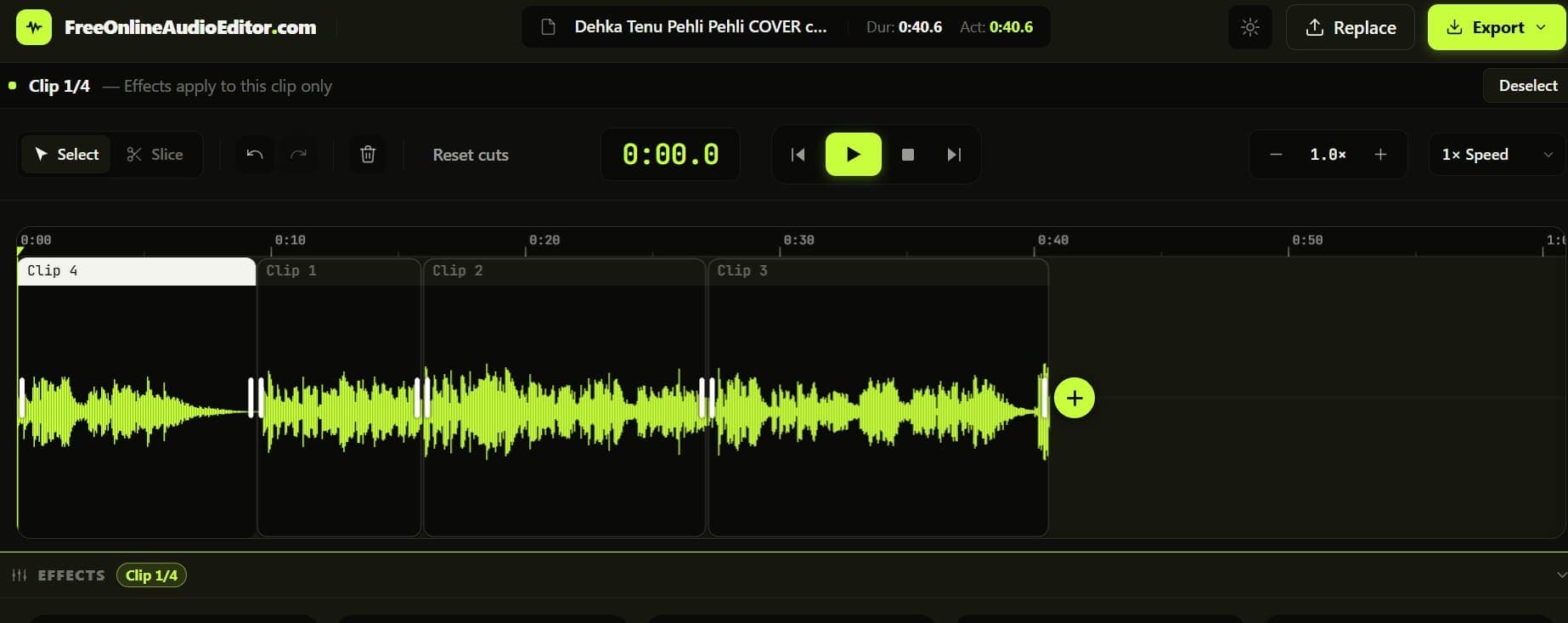 Merging Audio Tracks
You will see the new track appear as a separate audio block on the timeline.
Step 3: Arrange and Layer
Because you are using a non-destructive timeline editor, you can click and drag your audio blocks left and right to change exactly when they play.
- Place the blocks side-by-side to stitch them together sequentially.
- Place them directly on top of each other to make them play simultaneously (perfect for adding background music under a voiceover).
Step 4: Mix the Volumes
If your background music is too loud, it will overpower your voice! Click the Mixer button to open the audio mixer panel. From here, you can lower the volume of your background track so it sits perfectly underneath your main audio.
Once you are happy with the mix, click Export to download your finalized, merged audio file.