How to Remove Background Noise from Audio Free
Recording pristine audio can be incredibly difficult if you don't have a professional studio. Air conditioners hum, fans whir, and cars drive by outside—all of this background noise can ruin a great podcast take or voiceover.
Using our new AI Noise Reduction Tool, you can salvage noisy recordings and instantly achieve studio-quality sound, directly in your web browser.
Step 1: Upload Your Noisy Audio
Drag and drop your audio or video file into the editor. It will decode instantly, drawing a massive waveform so you can visualize the audio. Because everything runs entirely inside your web browser, your audio files are never uploaded to any server, ensuring total privacy and speed.
Step 2: Use the AI Noise Reduction
In the top toolbar, click the Clean Audio button (the sparkles icon).
Our editor utilizes a powerful Recurrent Neural Network (RNNoise) designed specifically for human speech. It analyzes your audio in real-time, isolating your voice and suppressing non-speech background noises.
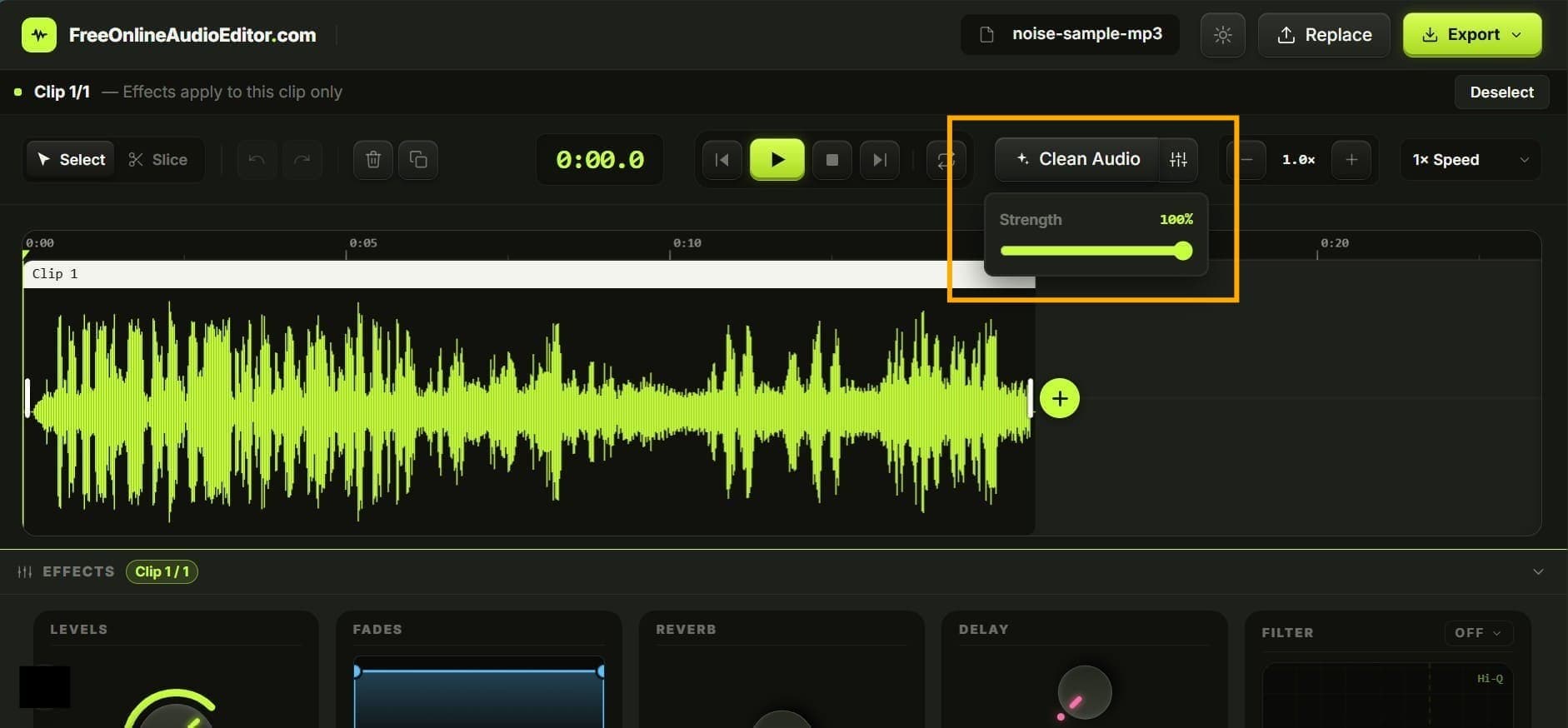 Noise Remover Preview
Adjusting the Strength
By hovering over the Clean Audio button, you can adjust the Strength slider.
- If you have heavy background noise, set it to 100%.
- If your audio is mostly clean but has a slight hiss, try setting it to 30% - 50% for a more natural, transparent sound.
Step 3: The "Studio Podcast" Mastering Chain
Sometimes, AI noise reduction can make audio sound "muddy" or muffled because it cuts out high-frequency hiss.
To fix this, our editor automatically passes the cleaned audio through a custom Studio Podcast Mastering Chain. This built-in pipeline includes:
- High-Pass Filter: Removes low-end rumbles and mic bumps.
- Low-Mid Cut: Fixes "boxiness" so you don't sound like you're in a closet.
- High-Shelf Boost: Restores the "air" and crisp presence of your voice.
- Dynamics Compressor: Glues your voice together, keeping the volume loud and consistent.
Step 4: Export Your Clean Audio
Once the cleaning is done, simply hit play to review the result. When you're satisfied, click Export to save your pristine, noise-free track as a WAV or MP3 file!